
Possible Layouts
Layout Options:" Client Testimonial" module. Enhance your website's credibility and engage your audience by showcasing compelling testimonials from satisfied customers. This versatile module offers five variants, each providing options to enable different elements such as author name, designation, content, image, and more. Let's explore how this powerful module can help you create an impactful testimonial section:
Variant 1
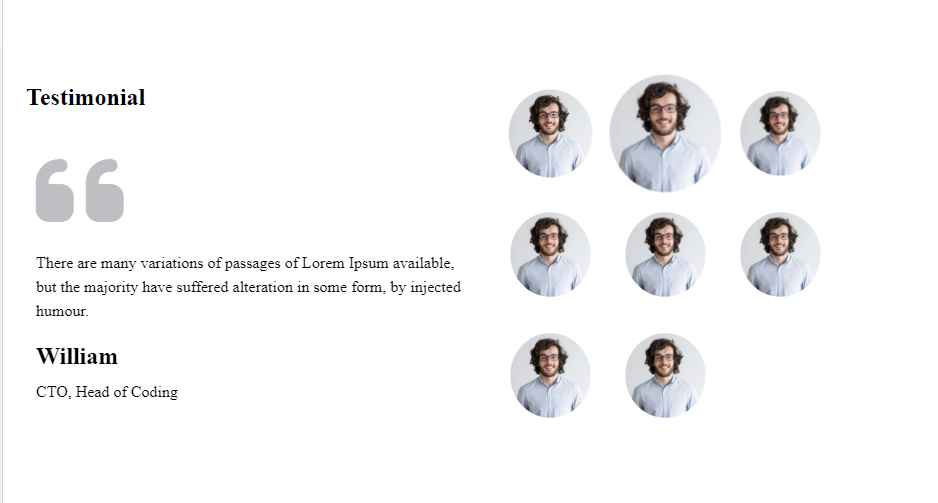
Variant 2
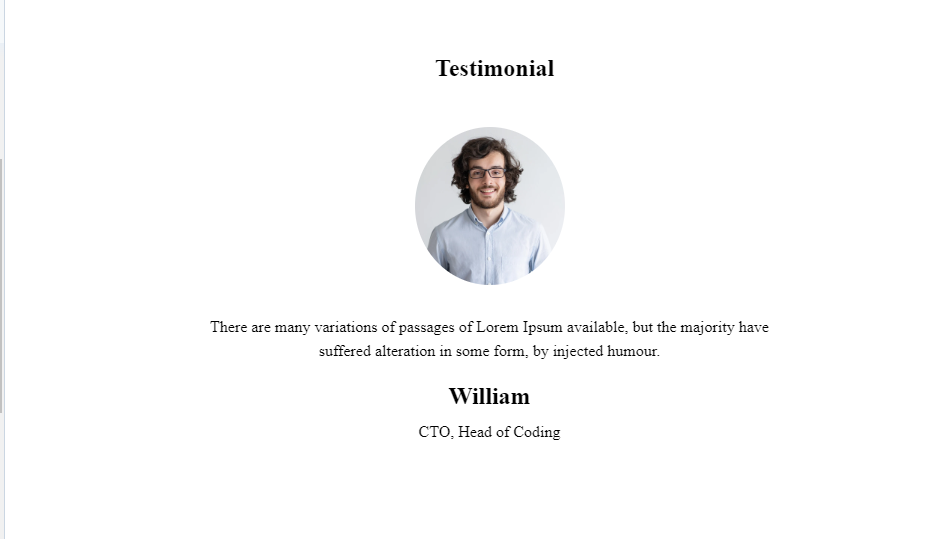
Variant 3
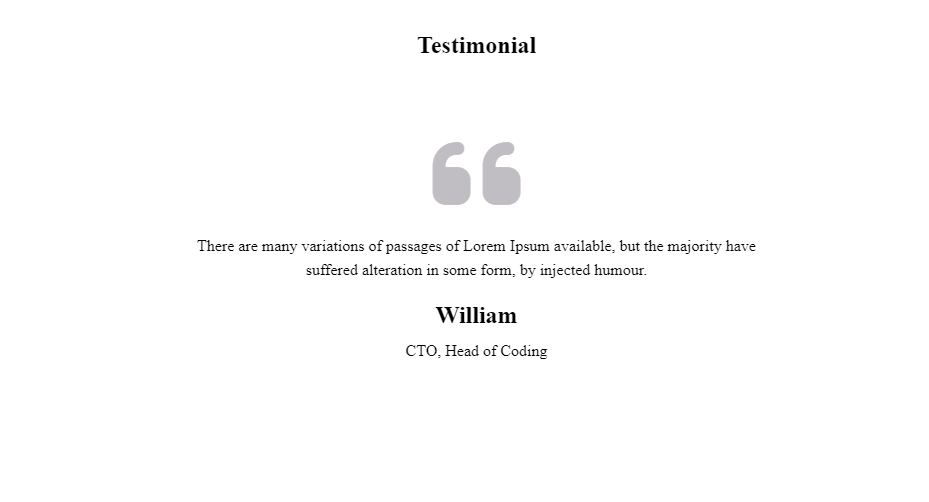 Variant 4

Variant 5
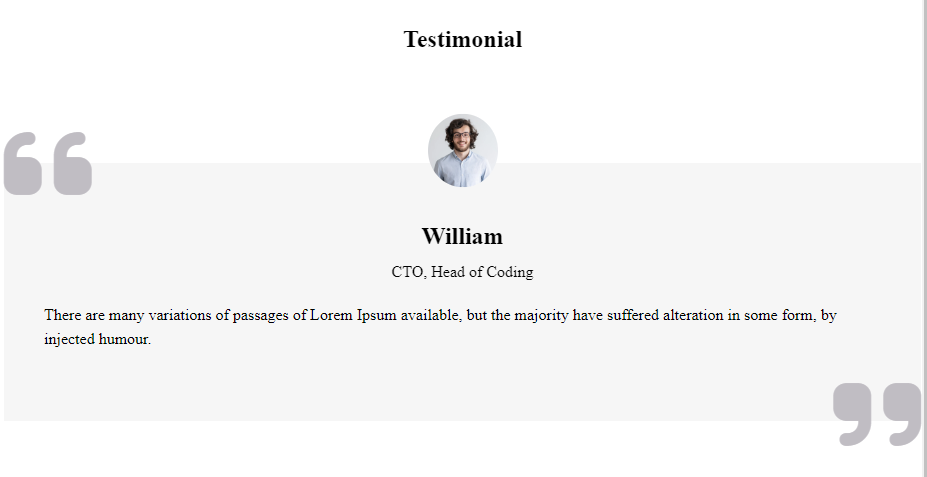
- Build Trust and Credibility: By showcasing testimonials, you establish social proof, instilling confidence in your potential customers and demonstrating that others have had positive experiences with your offerings.
- Engage and Persuade: Testimonials evoke emotions and provide relatable experiences, making them a powerful tool for influencing purchasing decisions and motivating visitors to take action.
- Flexibility and Customization: With five different variants and numerous options, you have the flexibility to design a testimonial section that best suits your specific needs and aligns with your website's design language.
- Enhance Visual Appeal: Enable images, designations, and other elements to create visually appealing testimonial sections that capture attention and make a lasting impression on your audience.
- Responsive and Mobile-Friendly: The module is designed to be responsive, ensuring optimal viewing experiences on various devices, including desktops, tablets, and mobile phones.
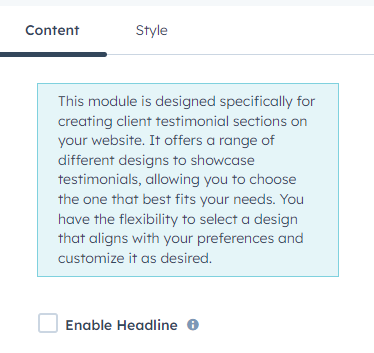
Content Tab Under Preview Section
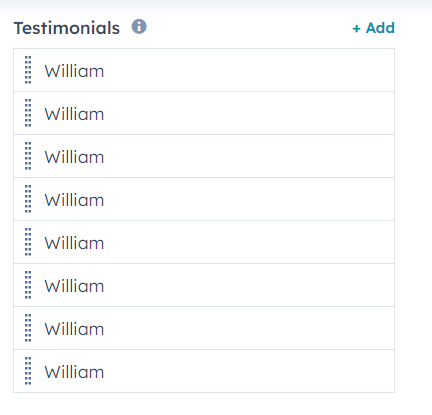
Testimonial Group
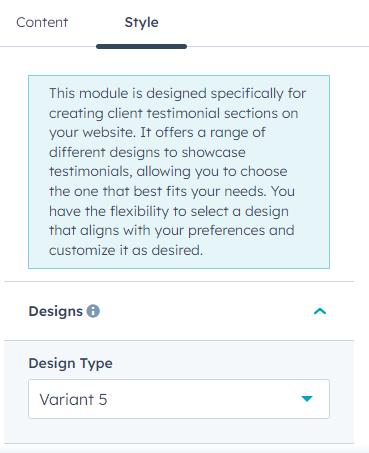
Style Tab Under Preview Section
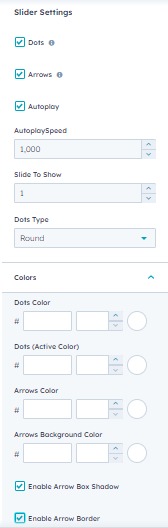
Slider Settings
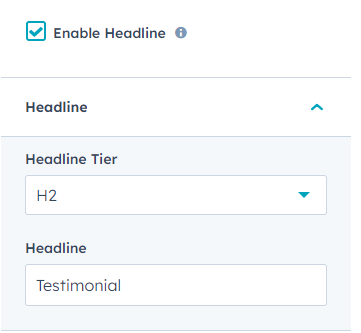
Detailed Testimonial With Headline
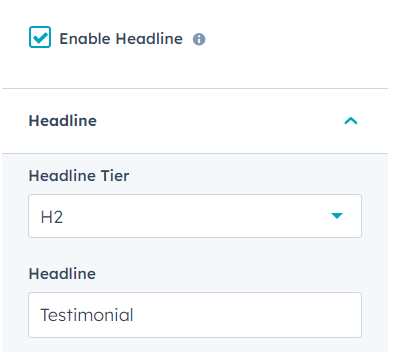
Enable The Headline field and you can add the headline text under the Headline field and also have the headline tier where you can choose the different headings.
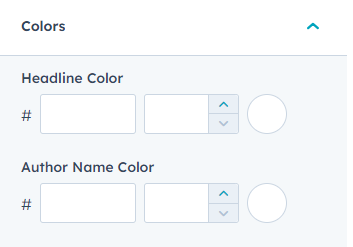
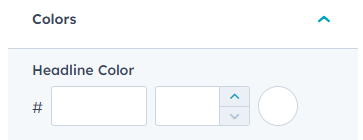
Under the Style Tab We have color Section where you have headline color and can add color from there.
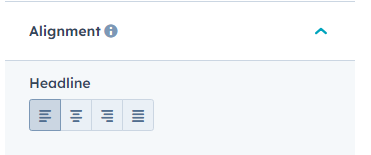
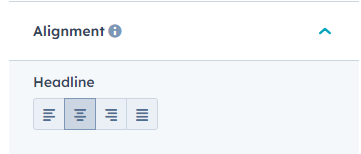
Under the Style Tab We have Alignment Section where you have headline and can add alignment from there.
Variant 1
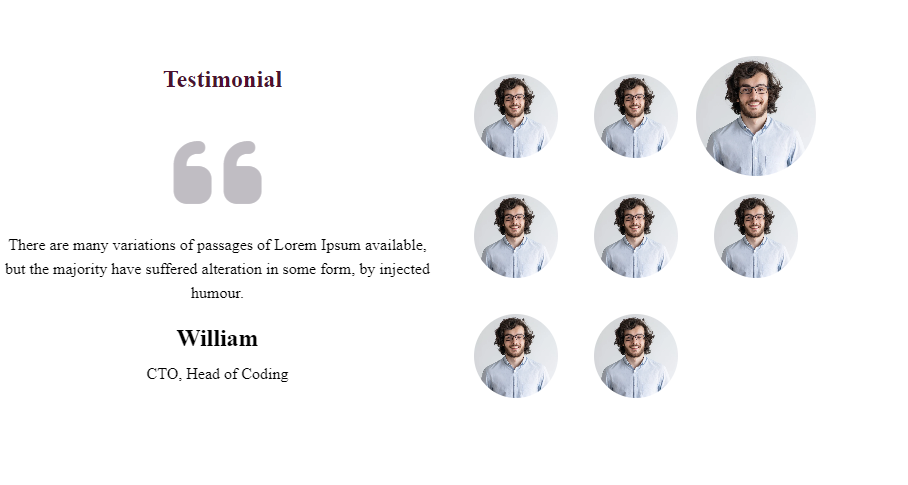
Variant 2
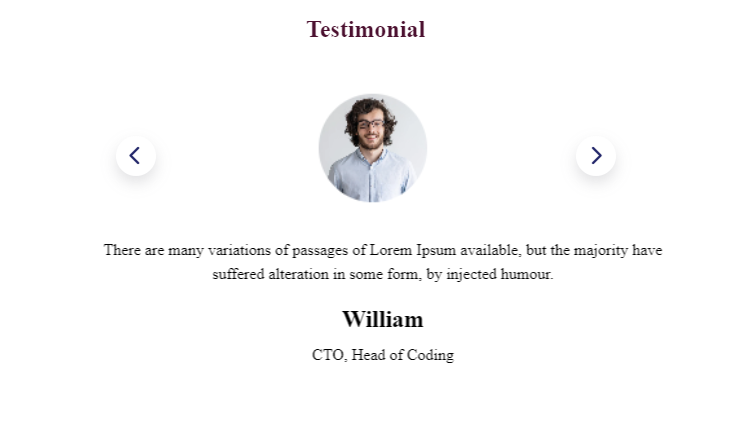
Variant 3
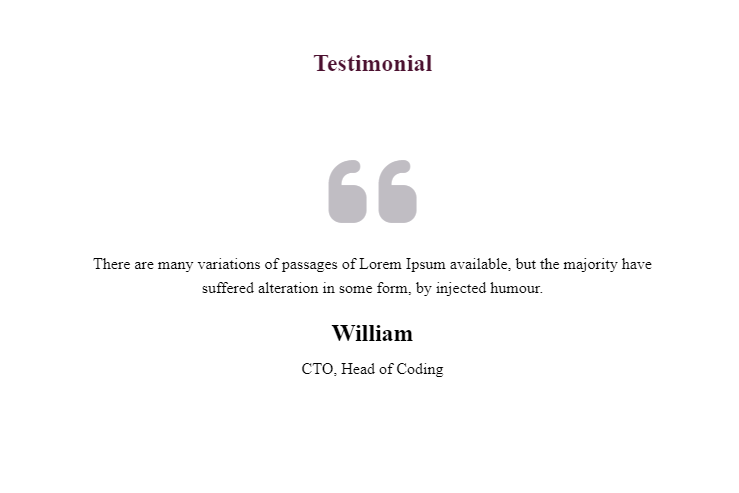
Variant 4
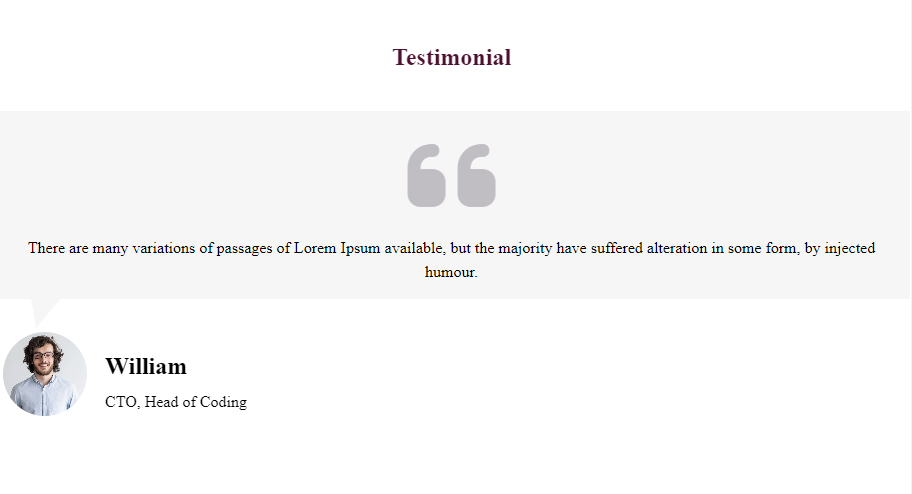
Variant 5
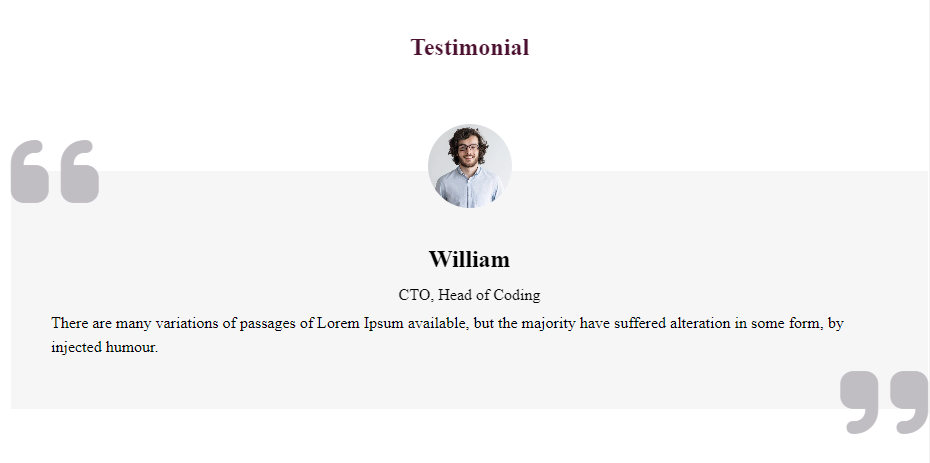
Detailed Testimonial
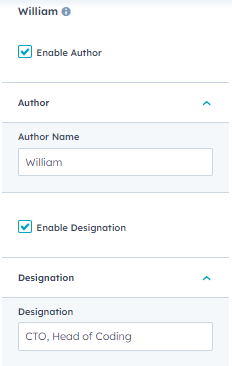
For Detailed Testimonial You can customize from content and style tab. In this variant, you can provide a comprehensive view of your customers' experiences. By enabling the author, designation, and description options, you offer a more detailed testimonial section. This variant is ideal for sharing in-depth success stories or testimonials that require more context or explanation.
Author Enabled

Enable Designation

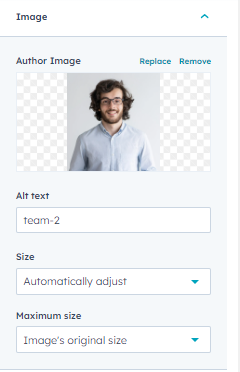
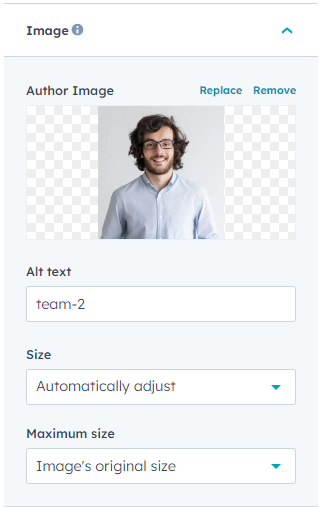
Image
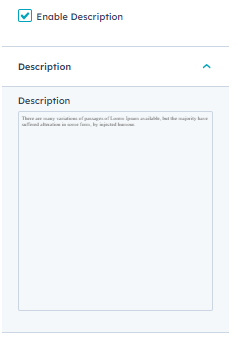
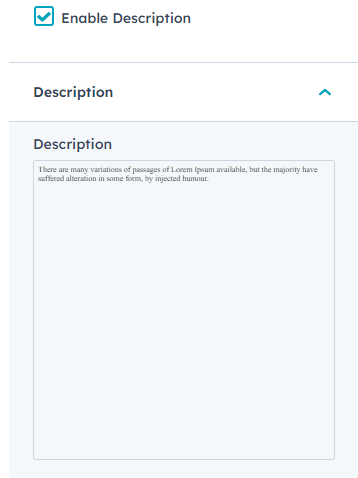
Enable Description Testimonial
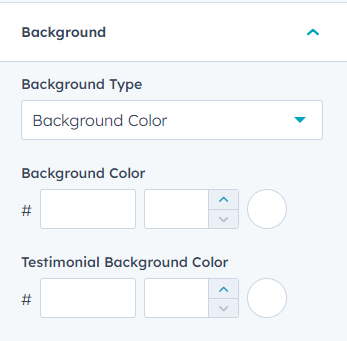
The styling field for all the variables and values
Slider Settings
Variant 1
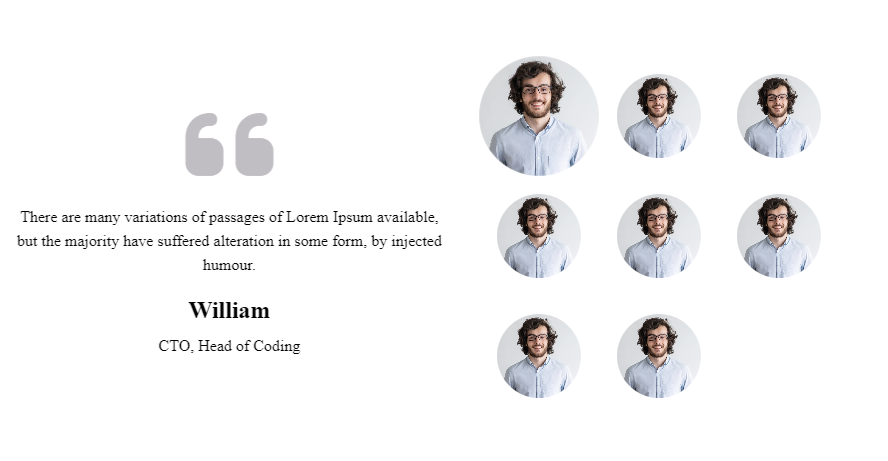
Variant 2
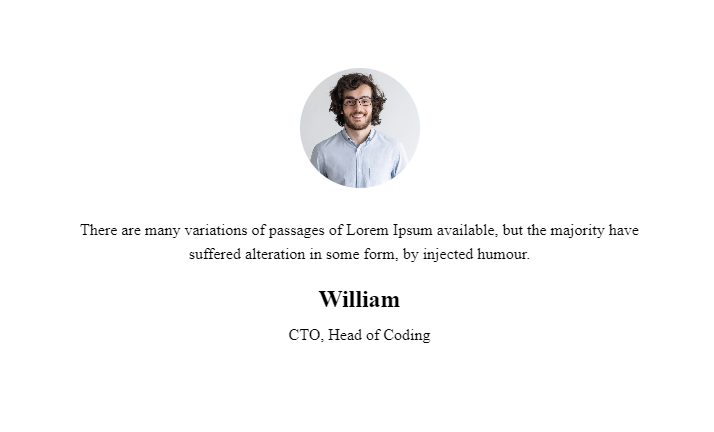
Variant 3
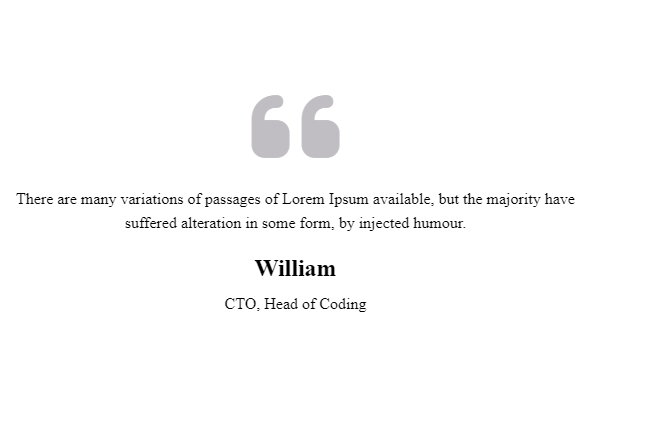
Variant 4
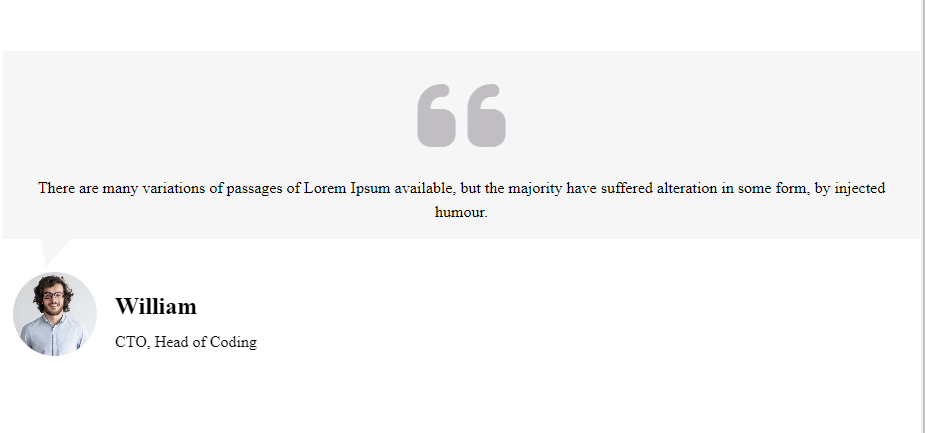
Variant 5
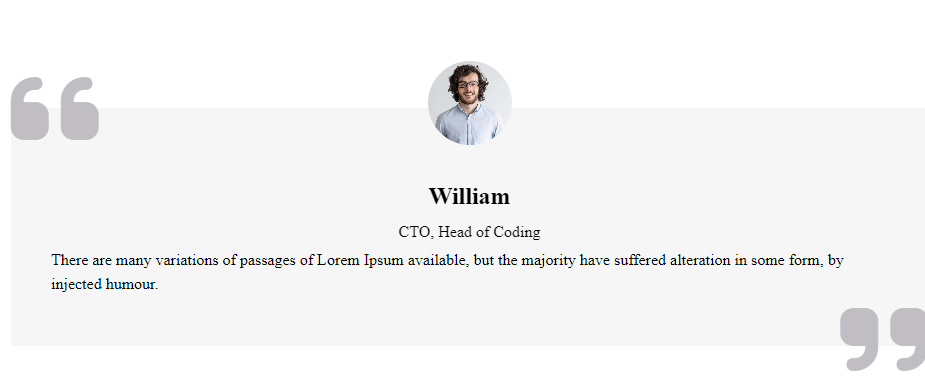
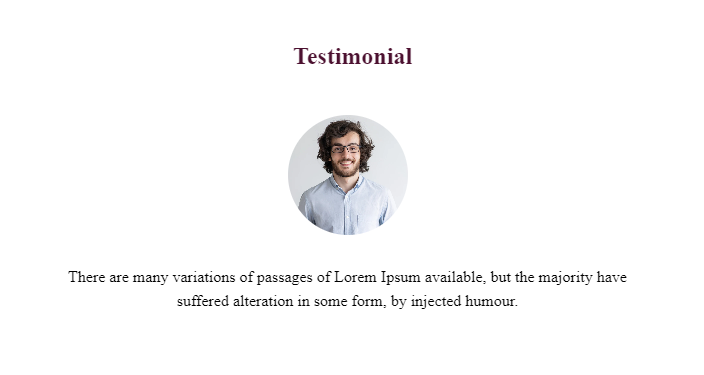
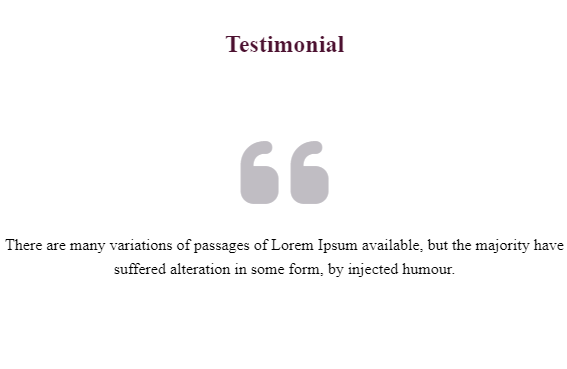
Headline And Testimonial Description Only
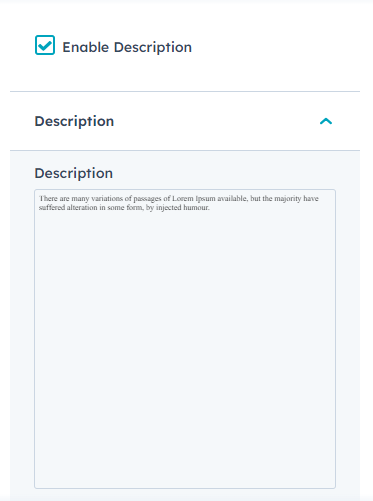
Under the content section you can find enable headline and testimonial description is present under the group testimonial. After enabling the feature. You have the headline text field headline tier And for Description you have rich text where you can add any amount of words
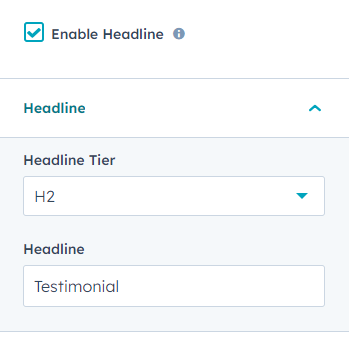
Under the Style Tab We have color Section where you have headline color and can add color from there.
Under the Style Tab We have Alignment Section where you have headline and can add alignment from there.
For Testimonial description the rich text provides each and every options for the styling.
Variant 1

Variant 2
Variant 3
Variant 4
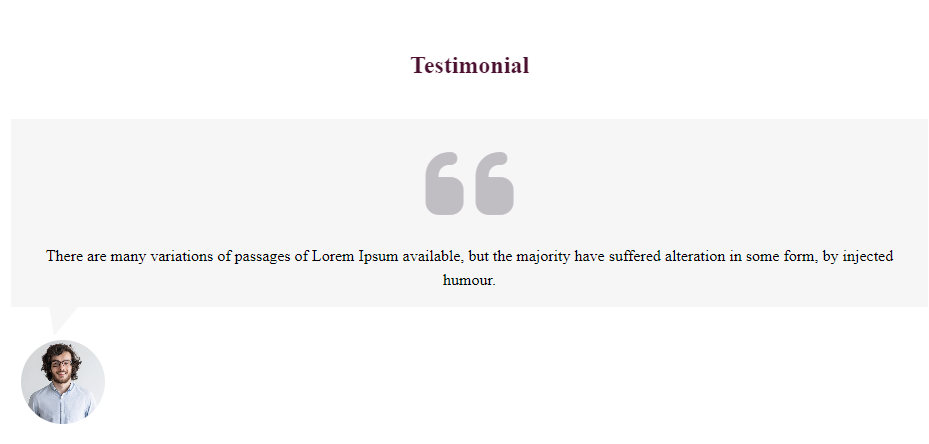
Variant 5
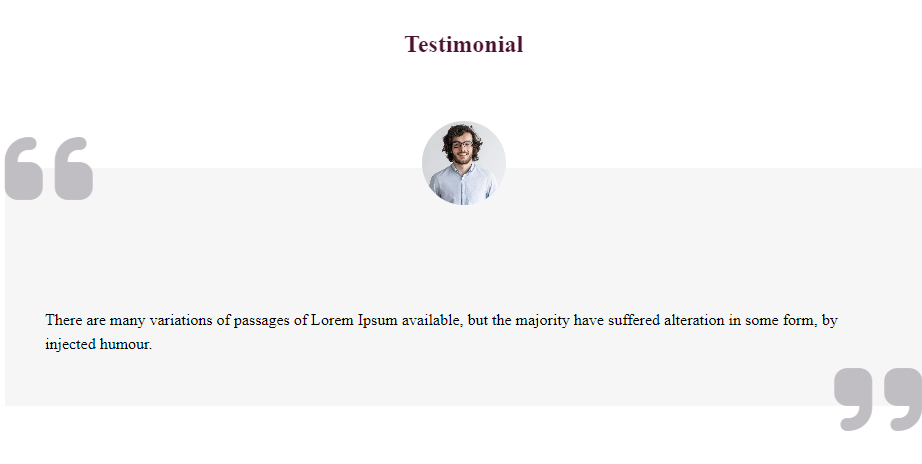
Testimonial Description Only
Under the content section you can find enable testimonial description is present under the group testimonial. After enabling the feature. You have the Testimonial Description you have rich text where you can add any amount of words
For Testimonial description the rich text provides each and every options for the styling.
Variant 1
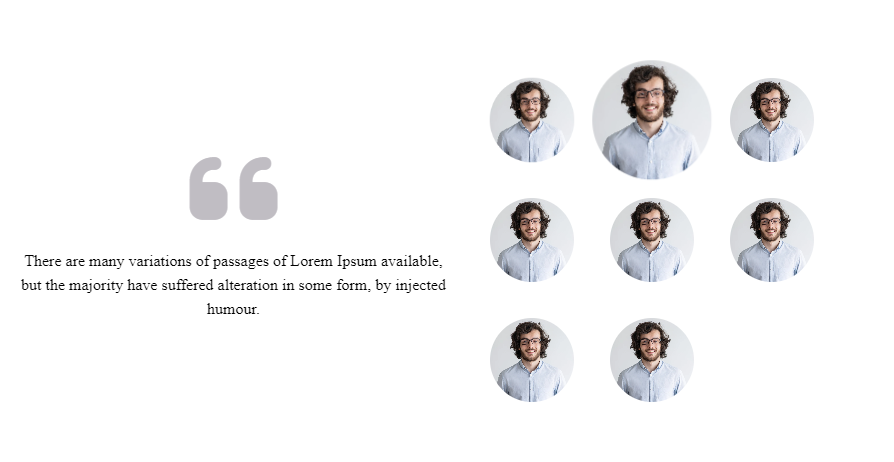
Variant 2

Variant 3

Variant 4
Variant 5